Secure your account: two-factor authentication (2FA) and passkeys
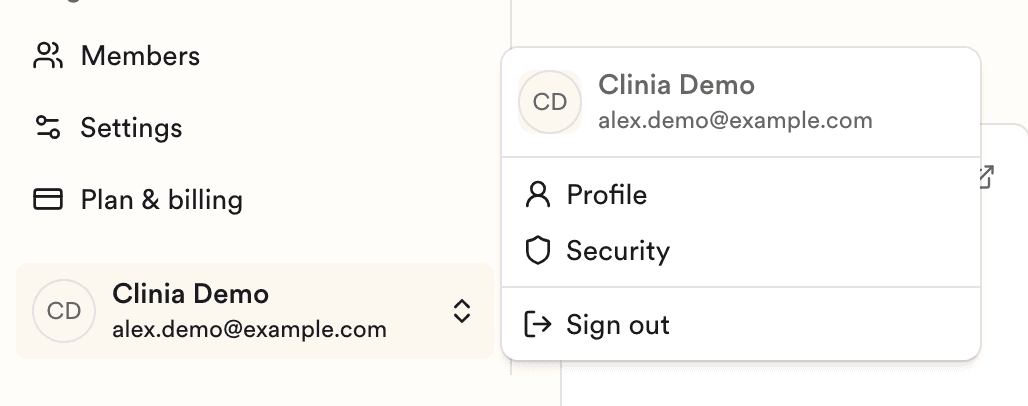
Two-factor authentication (2FA) and passkeys protect your personal Console account. You manage both on the Security page, in the user menu at the bottom left of the sidebar.
Turn on two-factor authentication
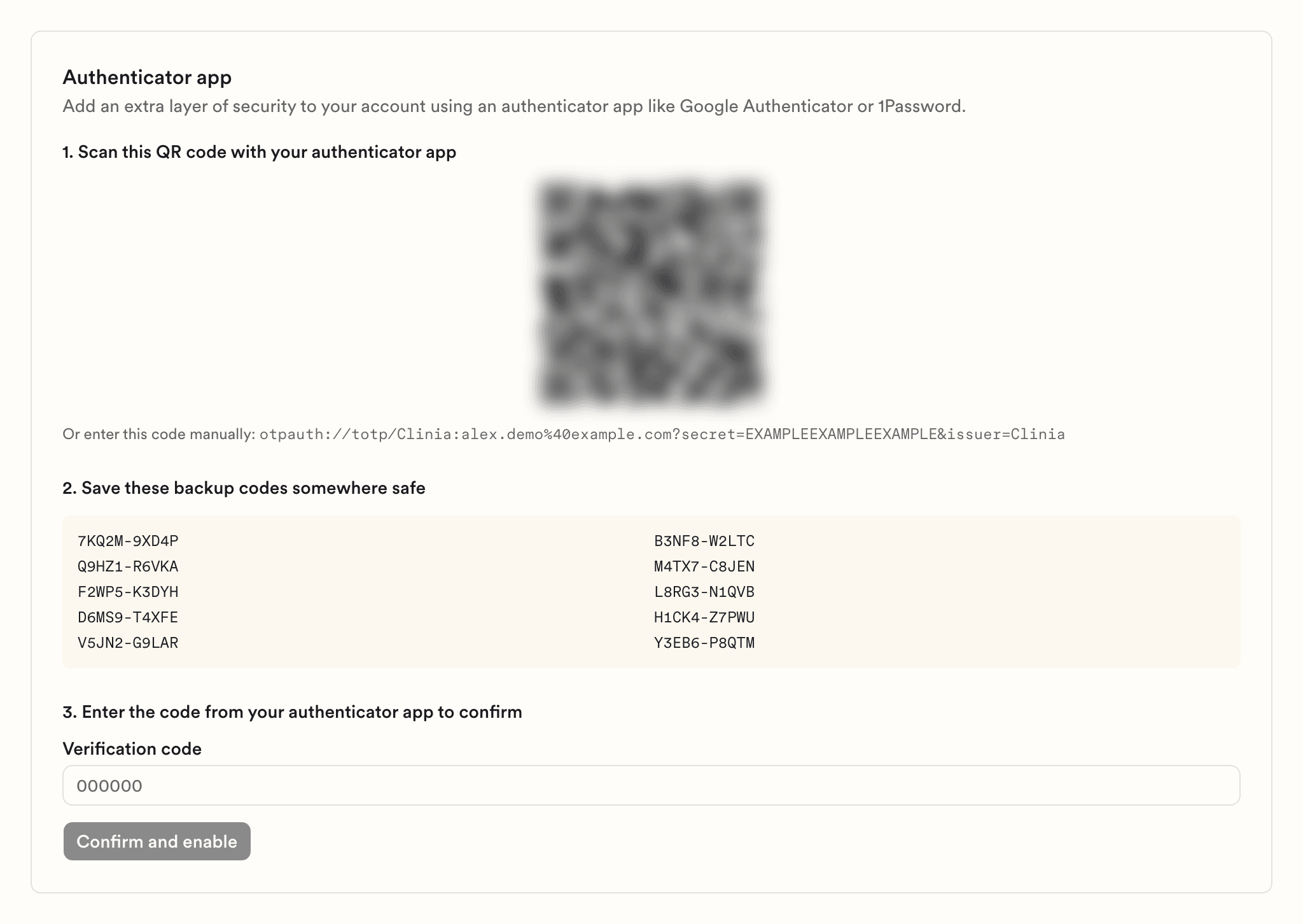
With 2FA on, the Console also asks for a code from an authenticator app, such as Google Authenticator or 1Password, when you sign in with your password. Your account needs a password first. If you signed up with Google, set one in the Password section of the Security page before you start.
- Open your user menu and click Security.
- Enter your password, then click Set up authenticator app.
- Scan the QR code with your authenticator app.
- Save the backup codes somewhere safe. They're shown only once.
- Enter the code from your authenticator app and click Confirm and enable.
The Console asks for a code the next time you sign in with your password. 2FA doesn't apply to Google sign-in. If your Google account is also connected, anyone who can sign in to that Google account can still sign in to the Console without a code.
To turn 2FA off, go back to the Security page, enter your password, and click Disable two-factor authentication.
Add or remove a passkey
A passkey lets you sign in with biometrics or a hardware key instead of a password, and it resists phishing.
- Open your user menu and click Security.
- Click Add passkey.
- Follow your browser or device prompt.
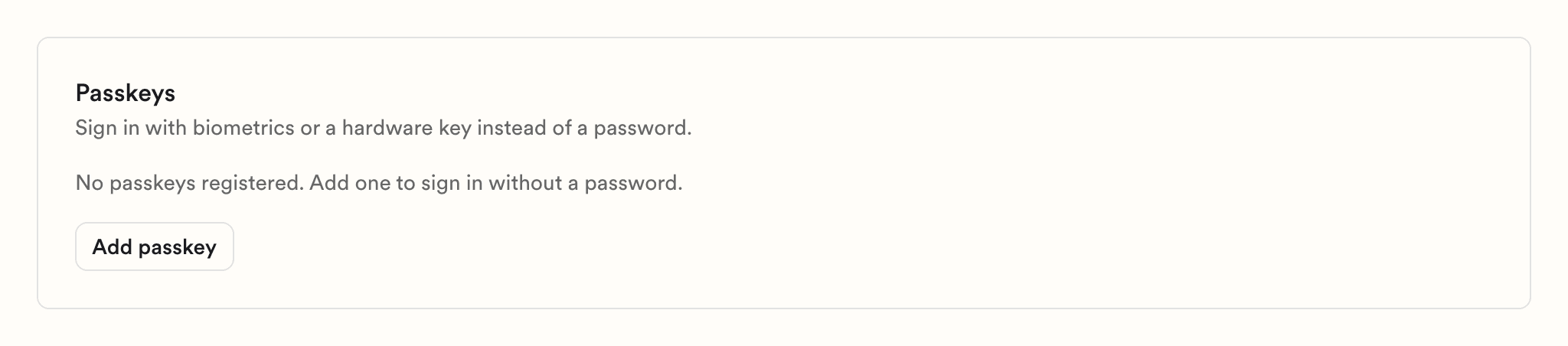
To stop a device from signing in with its passkey, click Remove next to that passkey. It's removed right away.
Need help?
If you've lost access to your authenticator app or you're locked out, write to Clinia Support and include the email address on your account.