Manage your account profile
Updated 7 October 20261 min read
Your profile holds your name as other members of your organizations see it. It belongs to your personal account, separate from your organization's settings.
Change your name
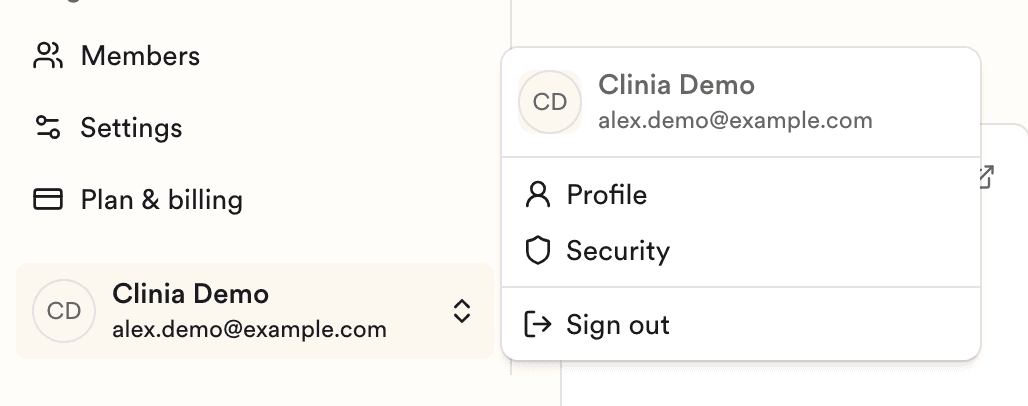
- Open the user menu at the bottom left of the sidebar and click Profile.
- Enter the name you want.
- Click Save.
Your name updates right away in the member list of every organization you belong to.
Password, two-factor authentication, and passkeys
These are on the Security page of the same menu. For two-factor authentication and passkeys, see Secure your account: two-factor authentication (2FA) and passkeys.
Need help?
If you can't change something on your profile, write to Clinia Support. Include the email address on your account and what you were trying to change.