Manage team members: invite, remove, and change roles
Owners and Admins manage who belongs to the organization from the Members page. A member's role applies across every workspace in the organization. What each role can do lists the permissions.
Invite a teammate
- Click Members in the sidebar.
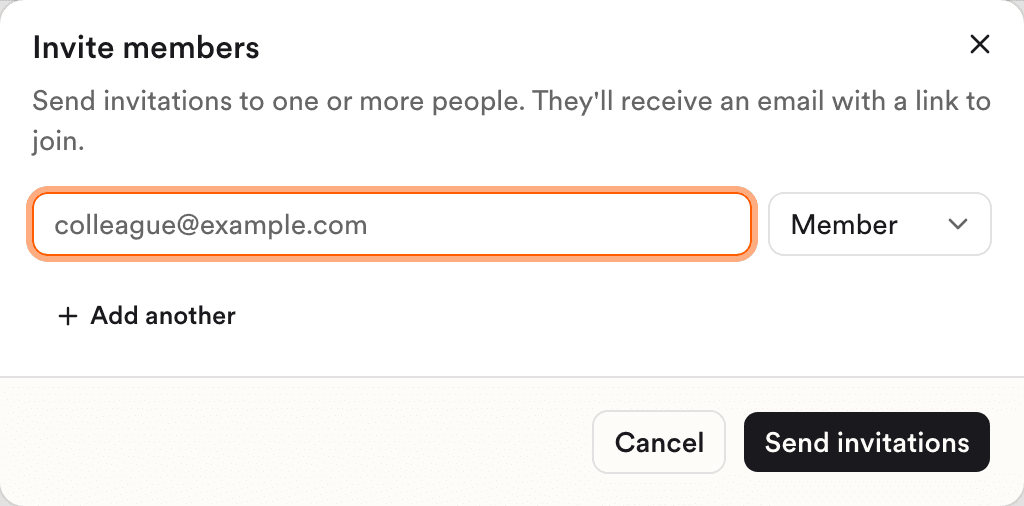
- Click Invite members.
- Enter the person's email address and choose a role. To invite several people at once, click Add another.
- Click Send invitations.
Each person gets an email with an Accept invitation button. Until they accept, the invitation shows as Pending in the member list, even after it expires. There you can click Revoke to cancel it. Changing its role also cancels it, then sends a new invitation.
Change a role or remove a member
Removing a member takes effect right away, with no confirmation, and ends their access to every workspace in the organization.
Find the member in the list, or search for them by name or email. Choose a new role from the selector in their row, or click Remove. If their row has neither, your role doesn't let you change that member.
Rules to know
- Owners can invite Admins and Members. To make someone an Owner, invite them, then change their role once they've accepted. Think it through first. An Owner can't be demoted or removed, even by another Owner.
- Admins can invite and remove Members. They can't change roles. They also can't remove Admins or Owners.
- You can't change your own role or remove yourself.
- Invitations expire after 48 hours. An expired invitation still shows as Pending. Click Revoke, then invite the person again.
Need help?
Write to Clinia Support and include your organization name and the member's email address.