Reset your Console password
Updated 7 October 20261 min read
On this page
If you've forgotten your password for the Clinia Console, you can choose a new one from the sign-in page.
Steps
- Go to console.clinia.cloud.
- Click Forgot password?
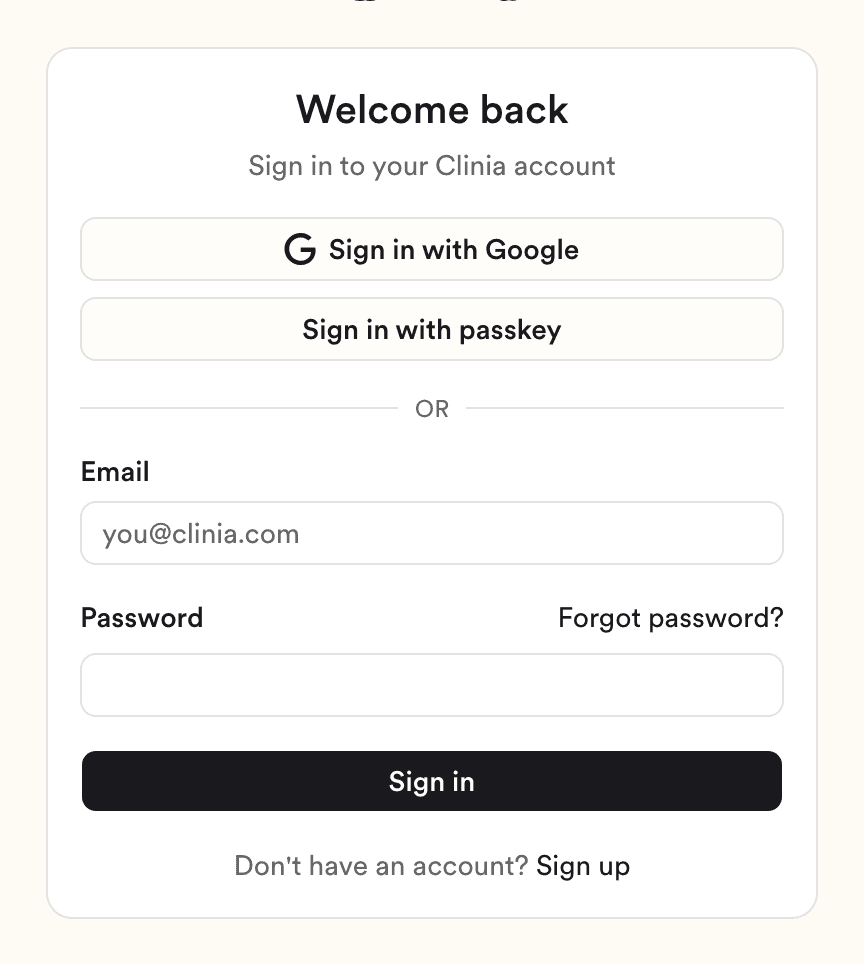
- Enter the email address you sign in with.
- Click Send reset link.
- Open the reset email and click Reset password.
- Enter your new password twice, then click Reset password.
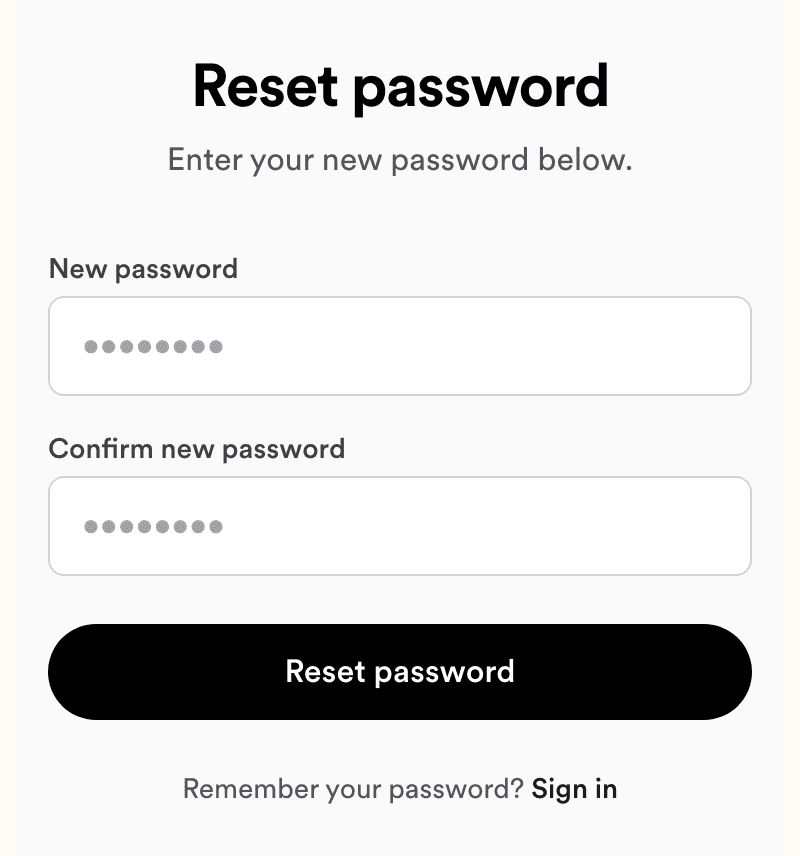
- Sign in with your new password.
Tips
- If the email doesn't arrive within a few minutes, check your spam or junk folder, and make sure you entered the address you sign in with.
- If the page says the link is invalid or has expired, click Request a new link.
- If you created your account with Google and haven't added a password, use Sign in with Google. To add one, open your user menu, go to Security, and click Set password.
- If you've added a passkey, use Sign in with passkey. It doesn't need a password.
Need help?
If you still can't sign in, write to Clinia Support. Include the email address on your account and the step where you got stuck.