Create a workspace and get API access
Updated 8 October 20262 min read
This article takes you from an organization with no workspace to a workspace your application can call. A workspace has its own data store, API endpoint, and credentials. You need the Owner or Admin role. If you don't have an account yet, start with Sign in to the Clinia Console.
Create the workspace
- Click Workspaces in the sidebar, then New workspace. Until your organization has a workspace, you can also click Create workspace on the Home page.
- Enter a name.
- Under Type, choose Sandbox for non-production use, or Production for live patient data.
- Click Create workspace.
Open the workspace from the list to see its Workspace ID and Workspace URL. Your application needs both.

Create a credential
- On the workspace page, in the OAuth credentials section, click Add.
- Enter a name, such as
production-server. - Choose an access level: Read for AI agents and read-only dashboards, or Read & Write for servers that send data to the workspace.
- Click Create credential.
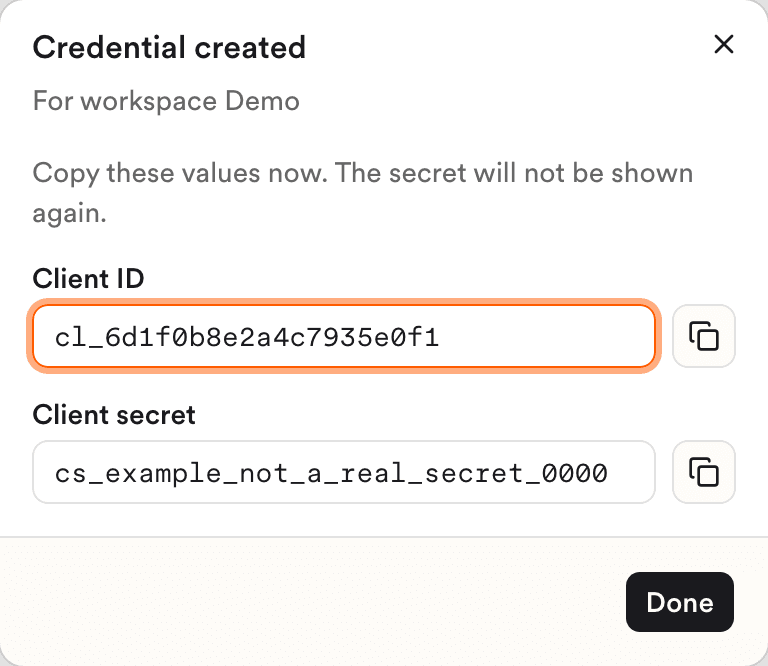
- Copy the Client ID and the Client secret before you click Done. The secret is shown only once.
Good to know
- A locked workspace type shows why. If it says Requires the Flex plan, an Owner can click Upgrade to Flex. If it says Limit reached, delete a workspace you don't need anymore, as Delete a workspace safely describes.
- If New workspace is greyed out, see Why am I getting an "Access denied" message?.
- Use a separate workspace for each environment, such as development, staging, and production, or for each product.
- If you lose a secret, delete the credential with the trash icon in its row and create a new one. Deleting takes effect right away, with no confirmation, and any application using the credential stops working.
- To exchange a credential for an access token, see Manage credentials in the developer documentation.
- Your agreement with Clinia determines whether you can send protected health information (PHI) and whether a business associate agreement (BAA) covers it. Confirm with Clinia Sales before you send any.
Need help?
Write to Clinia Support and include your organization name and the Workspace ID.