Delete a workspace safely
Updated 8 October 20261 min read
Deleting a workspace is permanent. Check what deleting removes and what to do first. You need the Owner or Admin role.
What deleting removes
- All patient data ingested in the workspace.
- All of the workspace's OAuth credentials. Applications that use them stop working right away.
- The workspace itself. It can't be restored.
Before you delete
- Open the workspace, review its OAuth credentials, and make sure no application still uses them. The Created by column shows who to ask.
- If you may need the data again, make sure you can ingest it again from your systems of record.
- Note the Workspace ID. Clinia Support will ask for it if you write to them later.
Delete the workspace
- Click Workspaces in the sidebar.
- In the workspace's row, click the trash icon at the end.
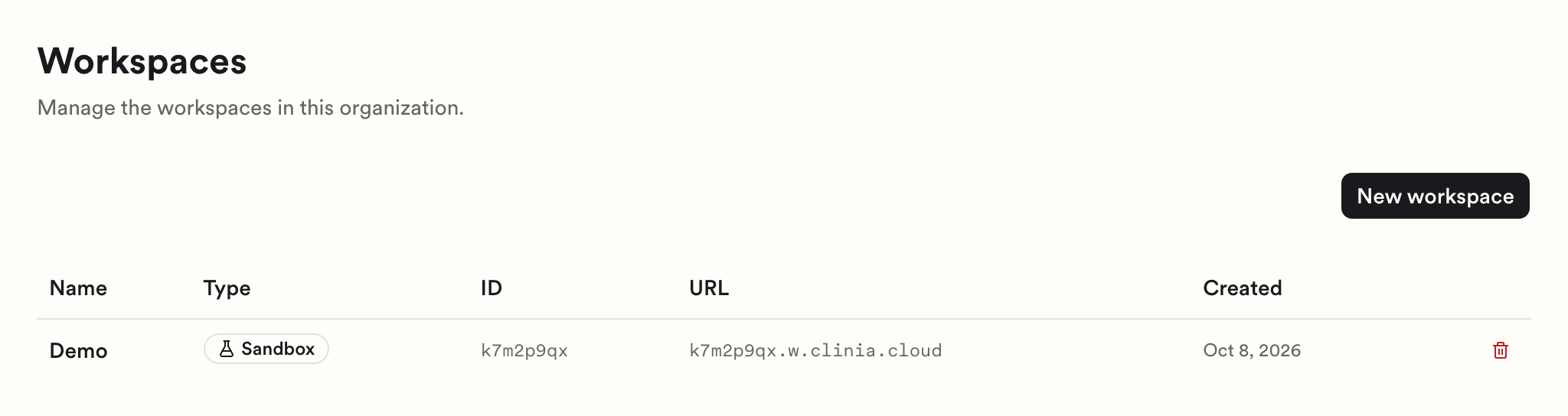
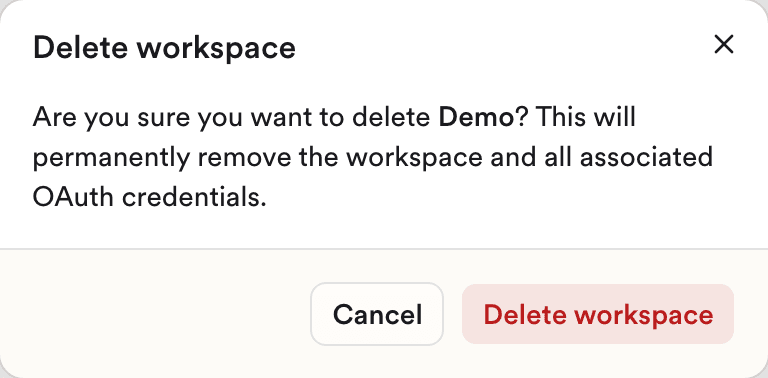
- Check the workspace name in the dialog, then click Delete workspace. The dialog mentions only the workspace and its credentials, but its patient data is deleted too.
If the trash icon is greyed out, see Why am I getting an "Access denied" message?.
Need help?
If you deleted the wrong workspace, write to Clinia Support right away. Include your organization name, the Workspace ID, and what you need to rebuild. A deleted workspace can't be recovered.