Reset your password
Overview
If you've forgotten your password or can’t log in, you can reset it from the Clinia login page.
You can access the login page here: https://auth.clinia.com/
Steps to reset your password
-
Go to https://auth.clinia.com/
-
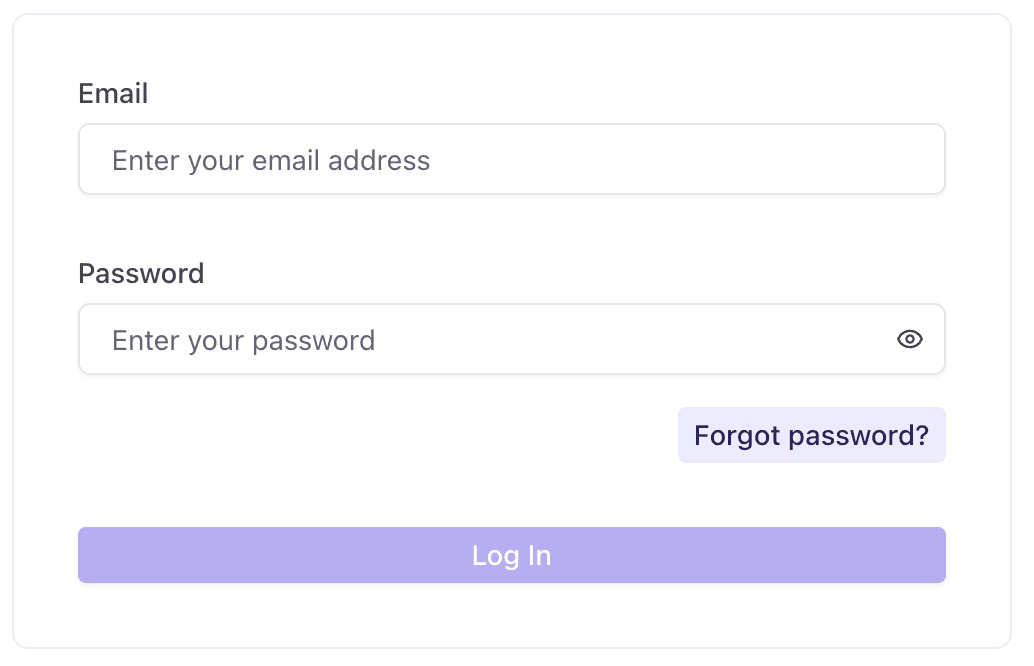
Click Forgot password?
-
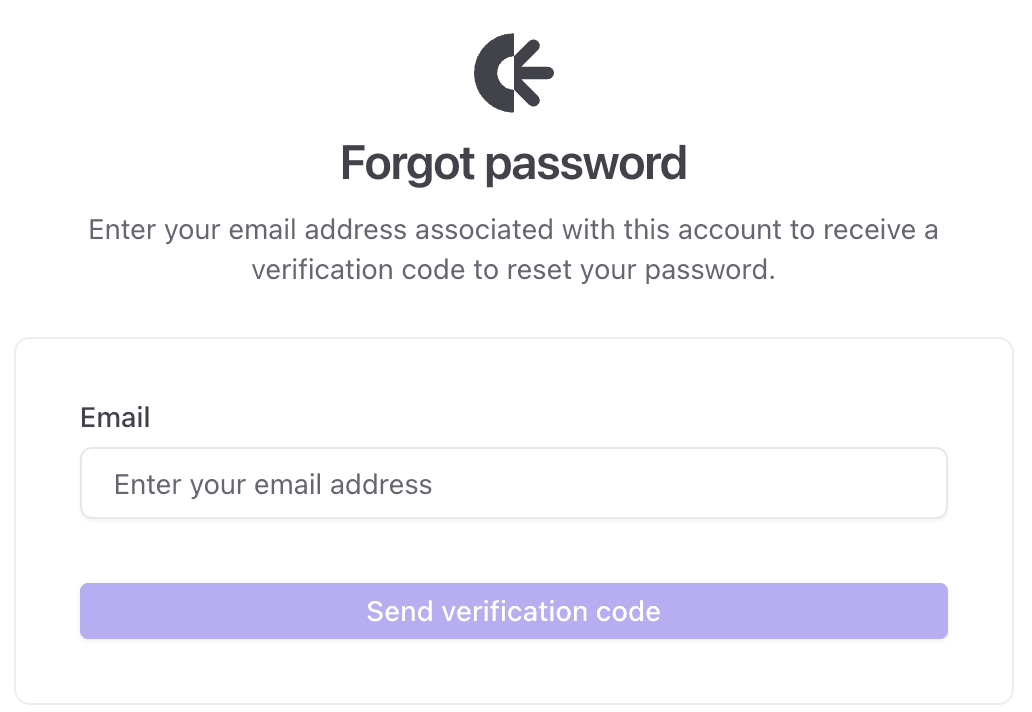
Enter the email address linked to your Clinia account
-
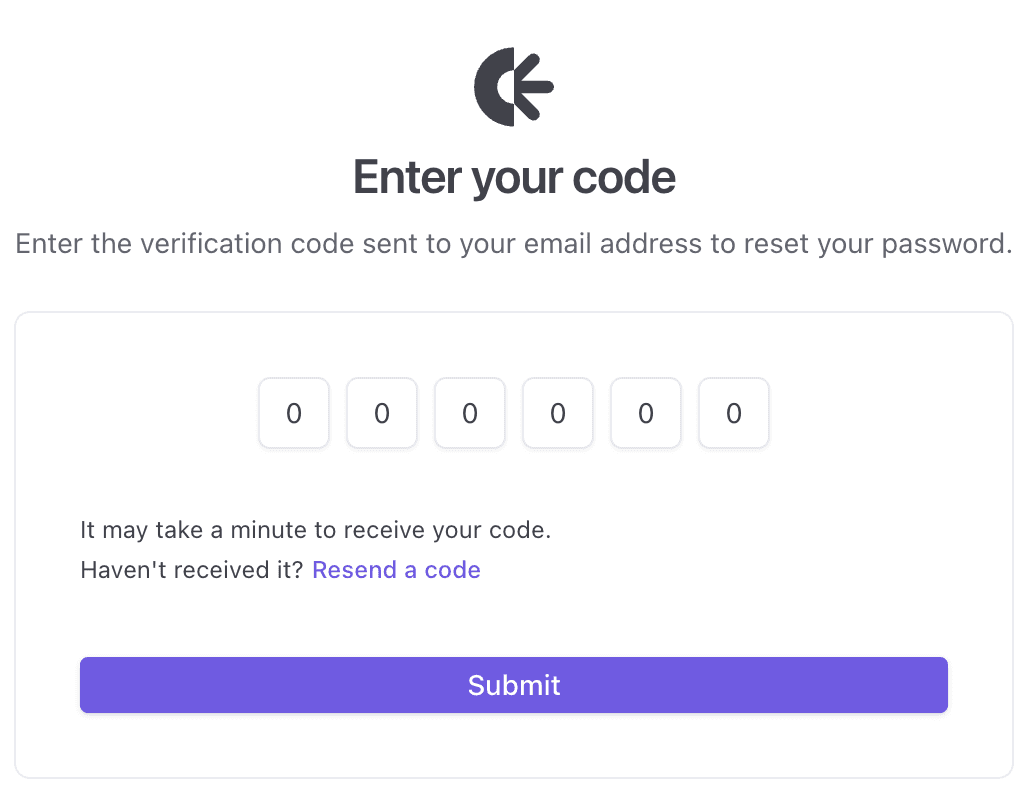
Check your inbox, you will receive a 6-digit verification code
-
Enter the code in the verification screen
-
Once the code is confirmed, you will be signed in to your Account Management Portal
-
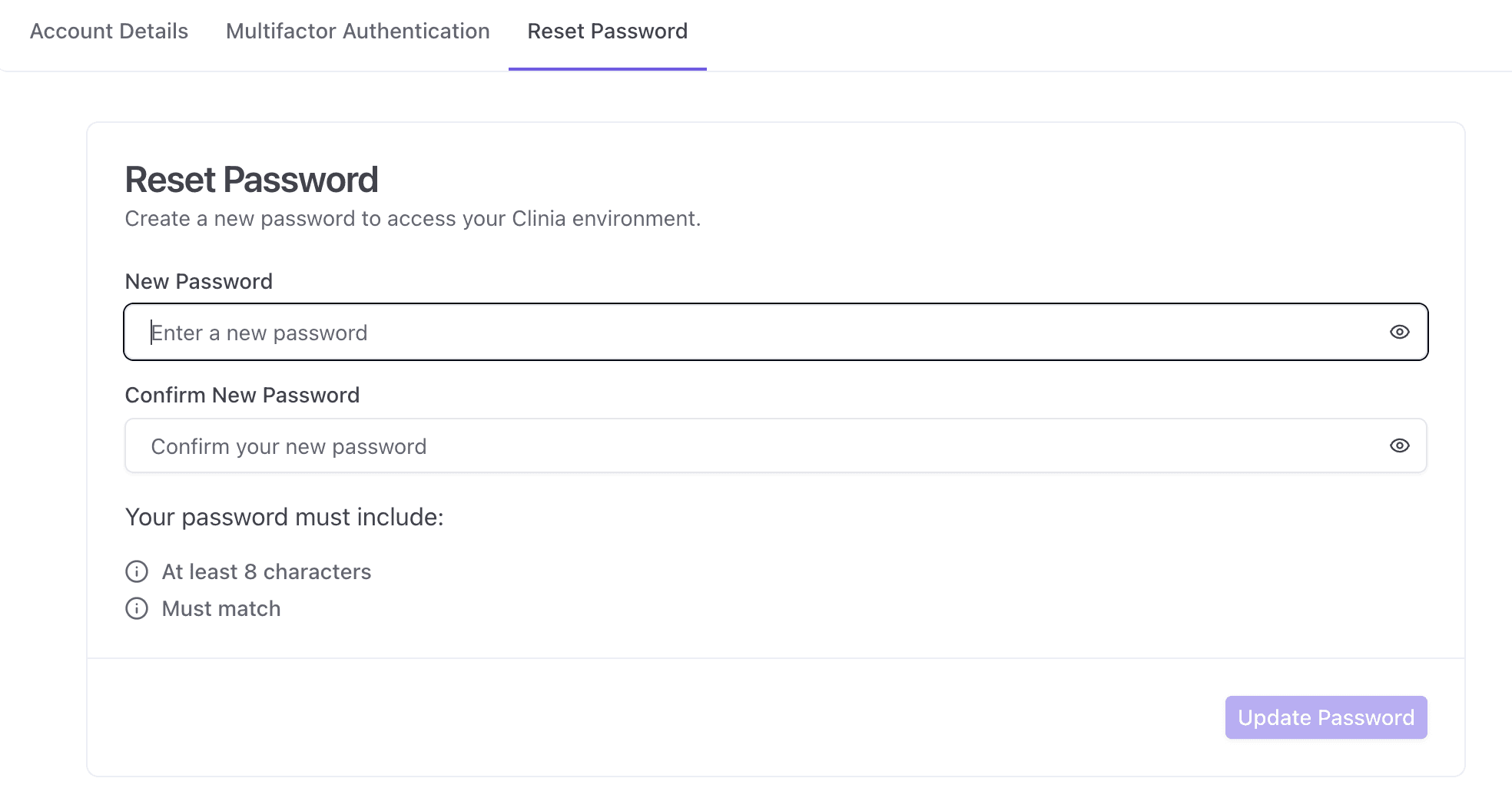
Open the Reset Password tab and choose a new password
Tips for success
-
Make sure you enter the same email you normally use to log in
-
If you don’t see the code email, check your spam/junk folder
-
If your organization uses a shared inbox , confirm you have access to it
-
If you request multiple codes, use the most recent code
Troubleshooting
I didn’t receive the password reset email
Try the following:
-
Wait a few minutes and refresh your inbox
-
Check your spam/junk folder
-
Search your inbox for Clinia
-
Confirm you entered the correct email address
-
Try again and make sure there are no extra spaces in the email field
My 6-digit code doesn’t work
This can happen if the code expired or has been replaced by a newer one. Try the following:
-
Request a new code from Forgot password?
-
Enter the most recent code you received
-
Copy and re-enter the code carefully
Need help?
If you still can’t reset your password, contact your organization administrator or Clinia Support and include:
-
The email address you’re trying to reset
-
The approximate time you requested the reset code
-
A screenshot of any error message (if applicable)