Multi-Factor Authentication (MFA): setup and usage
Overview
Multi-Factor Authentication (MFA) adds an extra layer of security to your Clinia account. When MFA is enabled, to log in, you must provide:
-
Your password (primary authentication factor)
-
A one-time code generated by an authenticator app (secondary factor)
This helps protect your account even if your password is compromised.
Before you begin
To set up MFA, you will need:
-
Access to your Clinia account
-
A compatible authenticator app, such as:
-
Google Authenticator
-
Microsoft Authenticator
-
How to enable MFA (setup)
-
Log in to Clinia’s platform
-
Open your Account Management Portal (https://auth.clinia.com/)
-
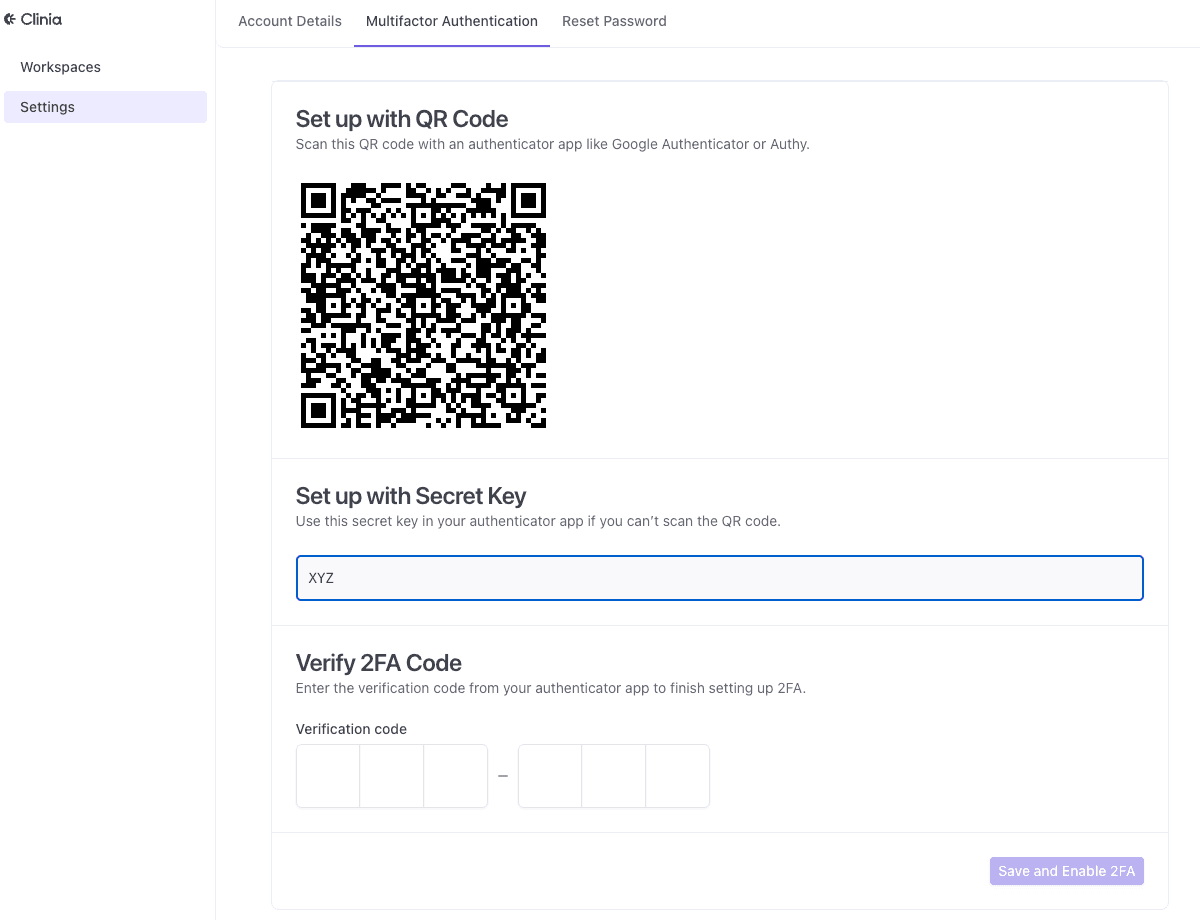
Go to the Multifactor Authentication tab
-
Follow the setup instructions to link your authenticator app
-
Confirm the setup by entering the one-time code generated by your app
Once enabled, MFA will be required the next time you log in.
How MFA works when you log in
When MFA is enabled, authentication happens in two steps:
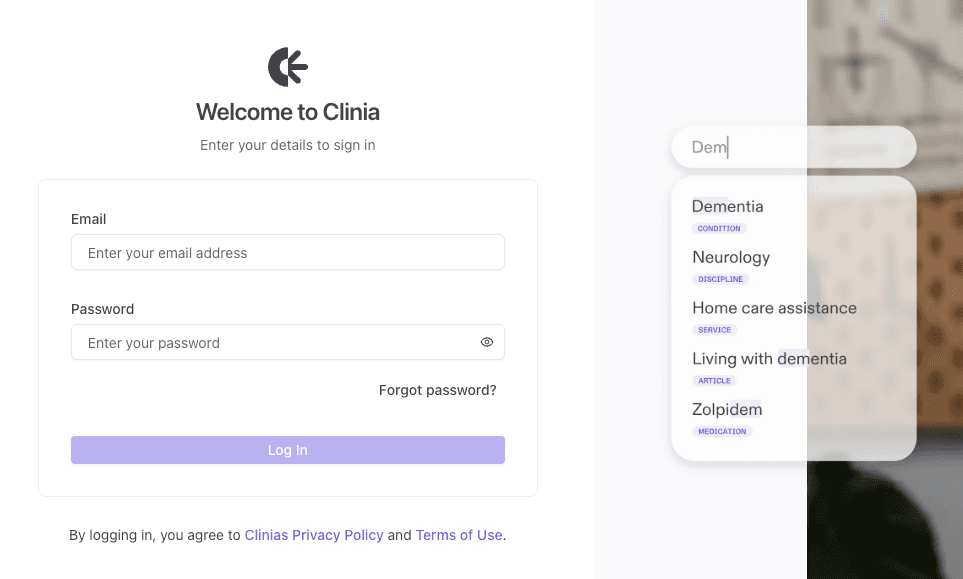
Step 1: Enter your email and password
-
Go to the Clinia login page
-
Enter your email address and password
-
Click Log In
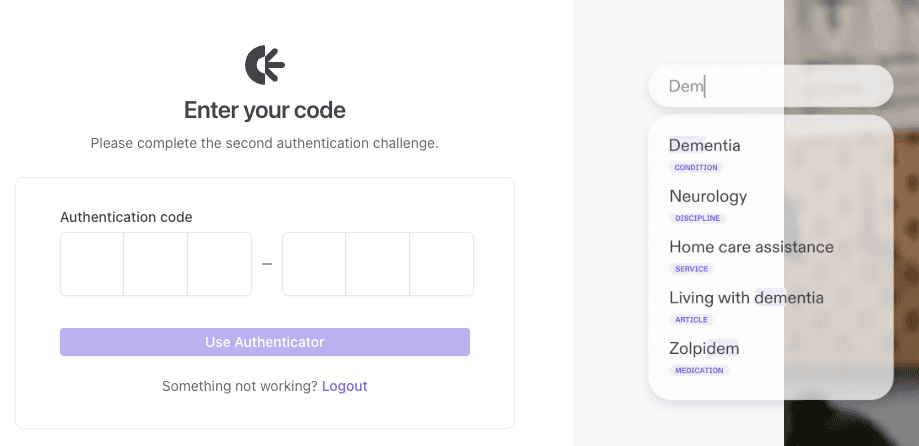
Step 2: Enter your MFA code
-
Open your authenticator app
-
Enter the one-time code shown in the app
-
Submit the code by clicking on the Use Authenticator button to complete the login
Access is granted only if both factors (password + MFA code) are valid.
Troubleshooting
My MFA code is not working
Try the following:
-
Make sure you’re entering the latest code (codes expire quickly)
-
Confirm the time on your phone is set to automatic. A difference in timezone settings might impact code generation
-
Try again with the next code generated by your app
I changed phones and lost access to my authenticator app
If you no longer have access to your authenticator app, contact your organization administrator or Clinia Support for help restoring access.
I’m not prompted for MFA after enabling it
In some cases, you may need to:
-
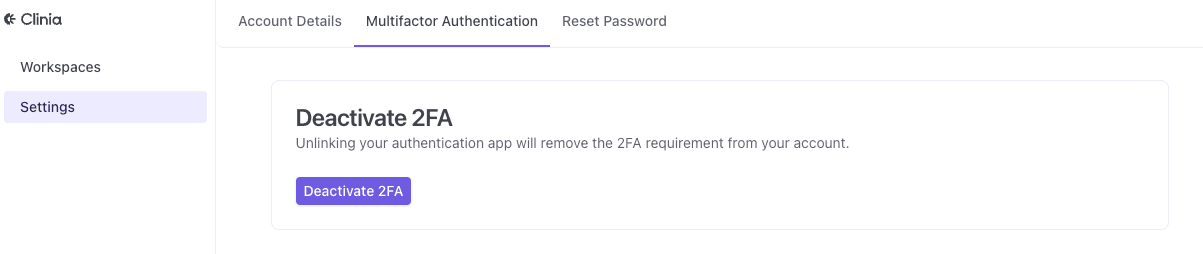
Validate that the 2FA is enabled in your settings
-
Log out and log back in